How to Bulk Upload Restaurant Menu via CSV or Excel
Overview
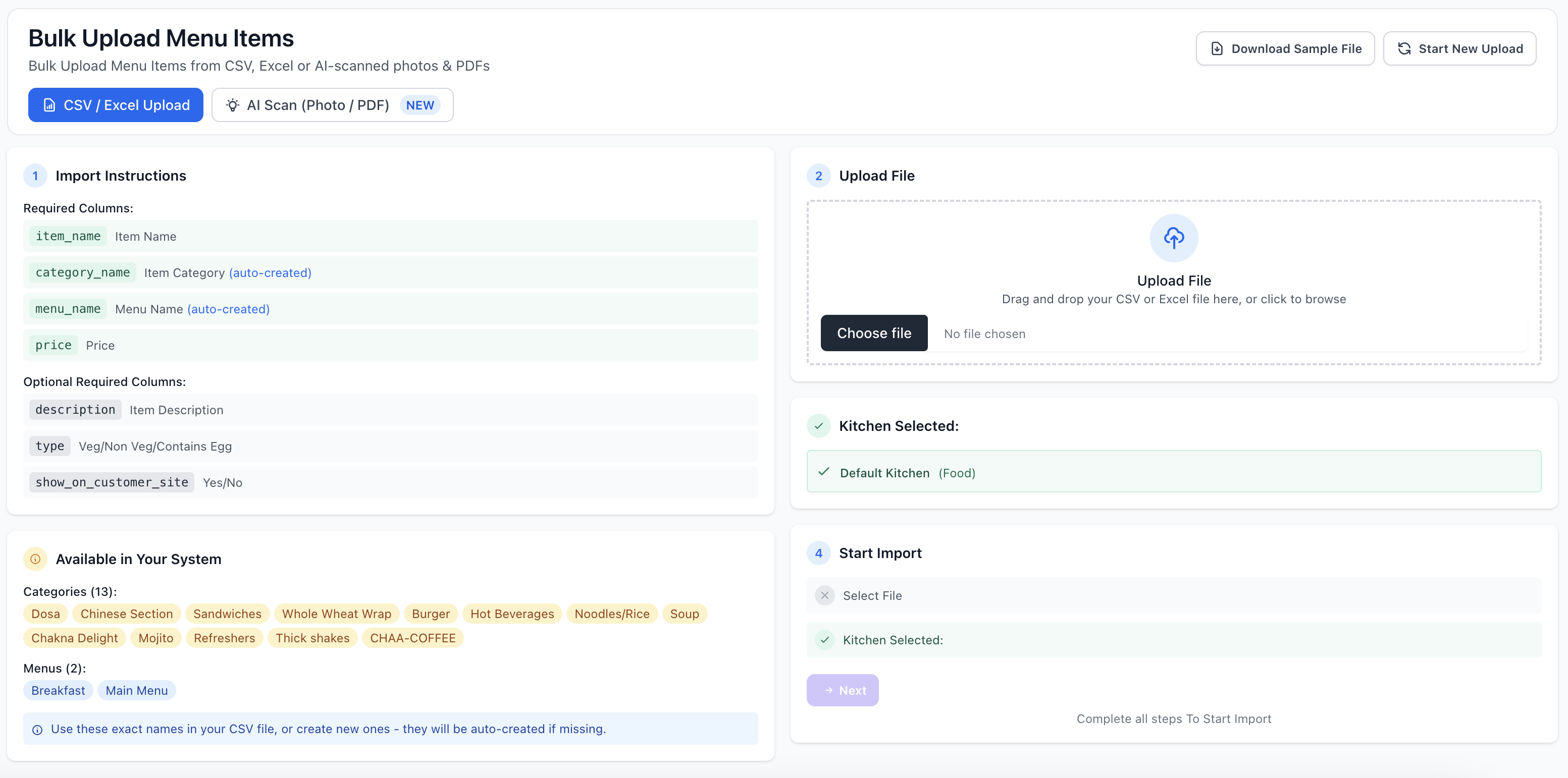
OnePe’s CSV / Excel Upload option lets you import large restaurant menus in bulk using spreadsheets. This method is ideal when migrating from another system, updating large catalogs, or managing structured menu data efficiently.
CSV & Excel Column Structure
To ensure a smooth import, format your spreadsheet with the appropriate column headers listed below:
Required Columns
item_name: The display name of the menu item.category_name: Category the item belongs to (e.g., Burger, South Indian). Missing categories are auto-created upon upload.menu_name: Menu group for the item (e.g., Breakfast, Main Menu). Missing menus are auto-created upon upload.price: Item price in numbers.
Optional Columns
description: Detailed item description.type: Dietary type (e.g.,Veg,Non Veg,Contains Egg).show_on_customer_site: Visibility status (YesorNo).
💡 Tip for Existing Categories & Menus:
Use exact category and menu names already created in your system to avoid duplicate entries. Unrecognized categories or menus will be created automatically.
Step-by-Step Guide
Step 1: Download the Sample File
- Go to Menu Management > Bulk Upload Menu Items in your OnePe Dashboard.
- Click the CSV / Excel Upload tab.
- Click Download Sample File in the top-right corner to get a correctly formatted spreadsheet template.
Step 2: Prepare Your Spreadsheet
- Open the sample file in Microsoft Excel, Google Sheets, or any spreadsheet editor.
- Fill in your menu items following the column guidelines shown above.
- Reference the Available in Your System section on your screen to check existing categories and menus.
- Save your completed file as
.csvor.xlsx.
Step 3: Upload and Select Kitchen
- Drag and drop your file into the Upload File drop zone, or click Choose file.
- Verify the auto-selected destination kitchen under Kitchen Selected (e.g., Default Kitchen).
Step 4: Import Your Menu
- Review the checklist under Start Import.
- Ensure both File Uploaded and Kitchen Selected display green checkmarks.
- Click Next to run the import process.
Need to Restart or Download Template Again?
- Download Template: Click Download Sample File at the top right.
- Reset Upload: Click Start New Upload at any time to clear current inputs and start over.