How to Bulk Upload Restaurant Menu Using AI Scan
Overview
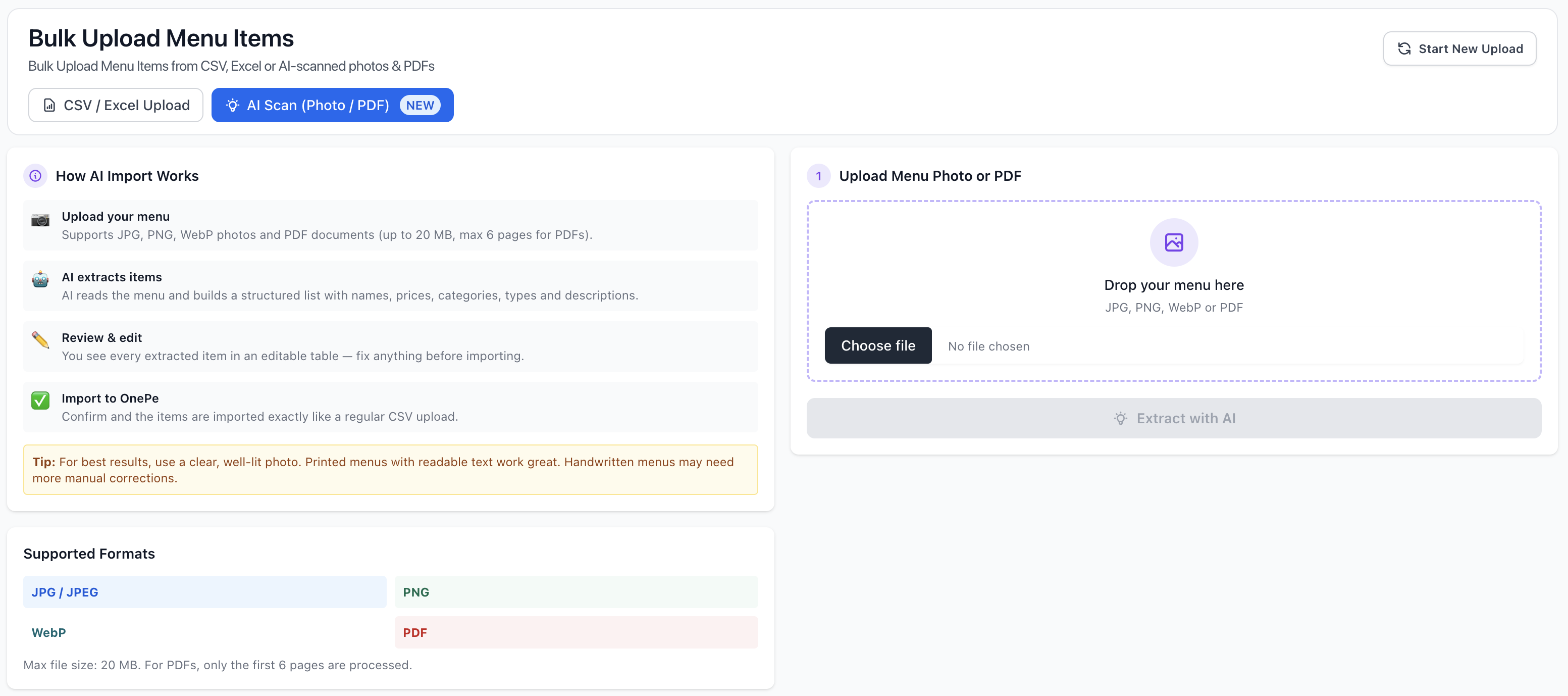
OnePe’s AI Scan feature allows you to digitize your restaurant menu effortlessly without manual typing. Simply upload a photo or PDF of your menu, and our AI will extract item names, descriptions, categories, types, and pricing directly into an editable format.
Key Requirements & Supported Formats
Before uploading, ensure your menu file meets the following specifications:
- Supported File Types: JPG / JPEG, PNG, WebP, and PDF.
- Maximum File Size: 20 MB.
- PDF Limit: Max 6 pages processed per document.
💡 Pro-Tip for Best Results:
Use a clear, well-lit photo or digital document. Printed menus with legible fonts yield the highest accuracy. Handwritten menus may require manual verification and minor edits.
How AI Menu Import Works
[ Upload Menu ] ➔ [ AI Extraction ] ➔ [ Review & Edit ] ➔ [ Import to OnePe ]
- Upload your menu: Select an image or PDF file from your device.
- AI extracts items: AI scans the document and structures item details, prices, categories, and descriptions.
- Review & edit: Inspect the extracted items in an editable table and make any necessary corrections.
- Import to OnePe: Confirm the list to publish the items directly to your restaurant menu.
Step-by-Step Guide
Step 1: Navigate to Bulk Menu Upload
- Log in to your OnePe Dashboard.
- Go to Menu Management > Bulk Upload Menu Items.
- Select the AI Scan (Photo / PDF) tab at the top of the page.
Step 2: Upload Your File
- Drag and drop your menu image or PDF into the Drop your menu here box, or click Choose file.
- Verify that your file is within the 20 MB limit.
- Click the Extract with AI button to start processing.
Step 3: Review and Confirm
- Once processing completes, review the generated table containing your menu items.
- Double-check item names, categories, and prices for accuracy.
- Click Import to OnePe to save all items into your live menu catalog.
Need to Start Over?
If you uploaded the wrong file or wish to start fresh, click the Start New Upload button in the top-right corner of the interface.